
Overview
In 2023, Broadcom acquired VMware and made the download process painful – sorry, I meant to say “thorough.” What used to be a simple download now requires creating an account, verifying your email, accepting terms that would make a lawyer weep, and navigating a portal that assumes you’re procuring enterprise software for a Fortune 500 company.
You’re not. You just want to run some VMs on your machine, but here we are.
Prerequisites
What You’ll Need:
- Email address (you’ll need inbox access to retrieve verification codes)
- Patience (bring plenty)
- About 15-20 minutes
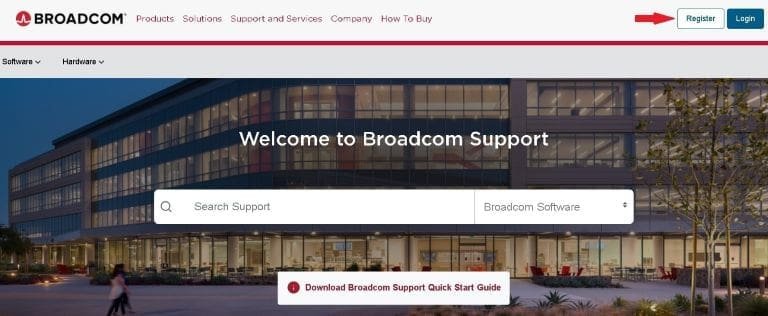
Step 1: Navigate to the Broadcom Support Page
- Open a browser tab and navigate to: https://support.broadcom.com/
- On the support home page, click Register (top-right corner)
Step 2: User Registration (Phase 1 – Email Verification)
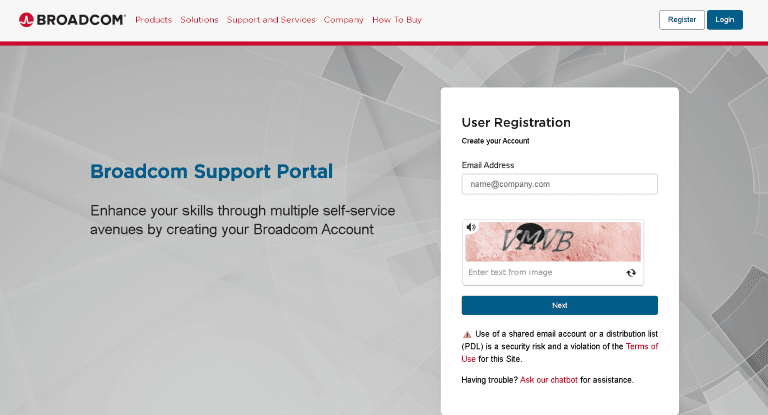
- Enter your email address
- Complete the CAPTCHA, then click Next
- A code verification form will appear on the page (leave this tab open)
- Open a new tab and navigate to your email inbox
- Open the verification email from Broadcom and copy the code
- Paste the code into the verification form in your other tab, then click Verify & Continue
💡 Can’t find the verification email? Try these before giving up:
• Check your spam and/or junk folders
• Search your inbox for emails from: selfregistration.no-reply
• Go back to the verification form and click Resend the code (in case it got lost the first time around)
Step 3: Complete the Registration Form
Before leveling up to login status, you’ll need to fill out Broadcom’s registration form:
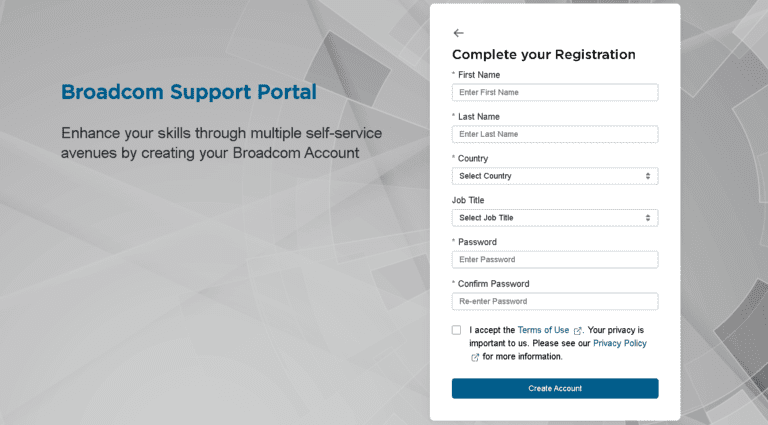
- Fill in the required fields
- Password requirements are strict – consider drafting it elsewhere and using copy/paste to avoid typos
- Check the box to accept the terms
- Click Create Account
Step 4: Build Your Profile
You’re now registered. Next up: building your profile.
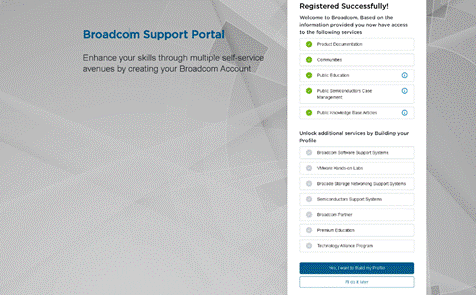
- You can skip this for now by clicking I’ll do it later at the bottom of the form
- You’ll be redirected to the support landing page to log in
Step 5: Log Into Your Account
- On the support home page, click Login (top-right corner)
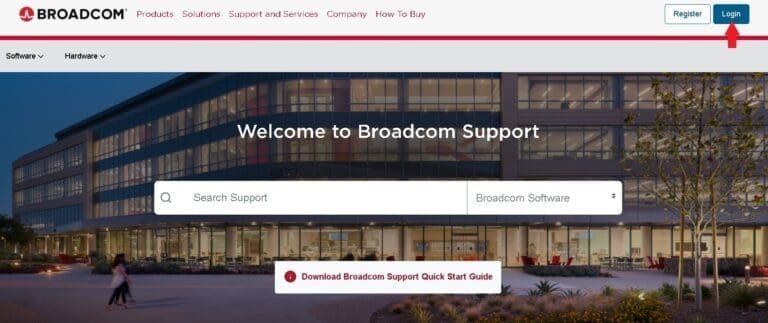
- Username: your registered email address
- Password: the password you created during registration
- Click Sign In
💡 Password not working? Same thing happened to me. Twice. Whether it’s a Broadcom quirk or user error, the fix is the same: reset your password and move on.
To reset your password:
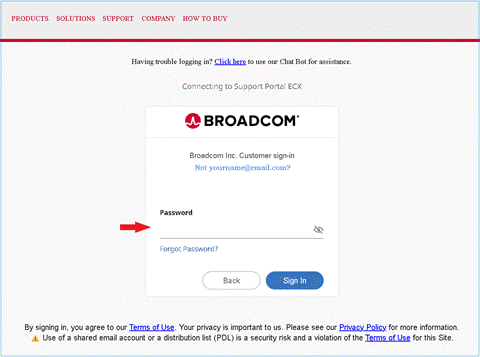
- Click Login on the support home page
- Click Forgot Password
- Enter your email address
- Complete the CAPTCHA
- Click Next
- Click OK to close the verification message box
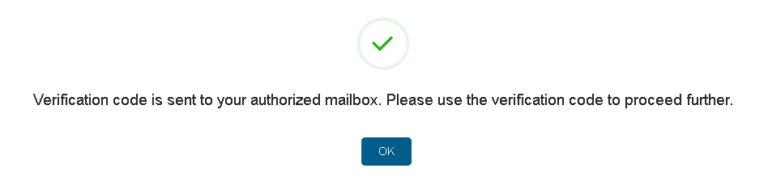
- Open a new browser tab and navigate to your email inbox
- Open the email from customersupport@broadcom.com and copy the verification code
- Head back to the verification form and paste the code
- Click Verify & Continue
💡 Yes, this is a second verification code just to reset a password. You already verified your email to create the account. Now you’re verifying again just to reset a password. It’s a lot, I know.
- Navigate back to your inbox
- Find the email from selfregistration.no-reply@broadcom.com
- Click the reset link, or copy and paste it into your browser
- Create a new password (or try the same one, it’s worth a shot)
- Click the button to update your password
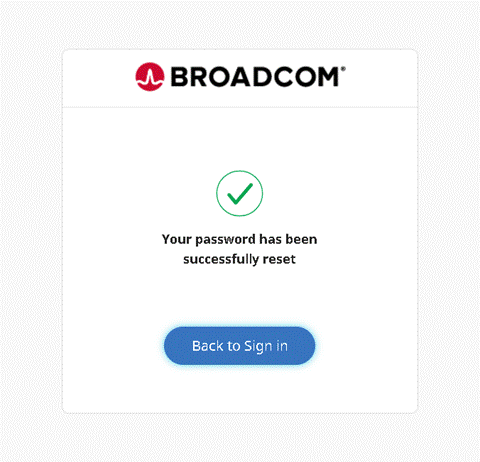
- Click Back to Sign In
Step 6: Log Into Your Account (For Real This Time)
Enter your credentials:
- Username: your registered email address
- Click Next
- Password: your newly reset password
- Click Sign In
You’re in. Wasn’t that fun?
Step 7: Navigate to Downloads
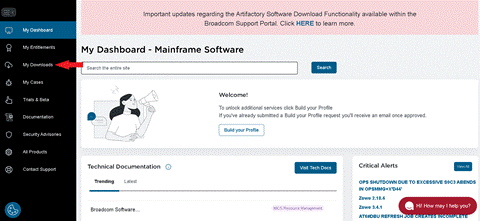
- In the left sidebar menu, click My Downloads
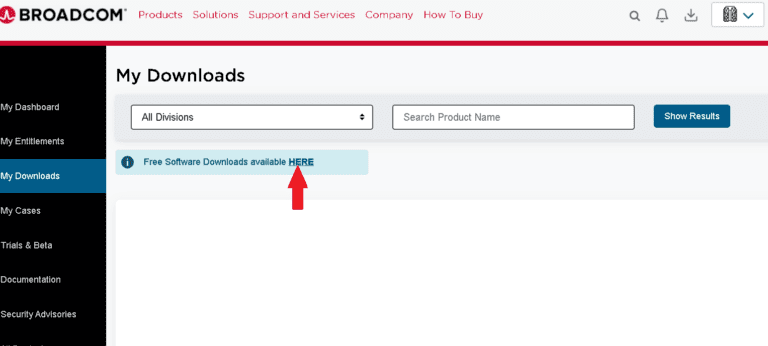
- Look for the blue message near the top of the page: “Free Downloads Available Here”
- Click HERE in the message box
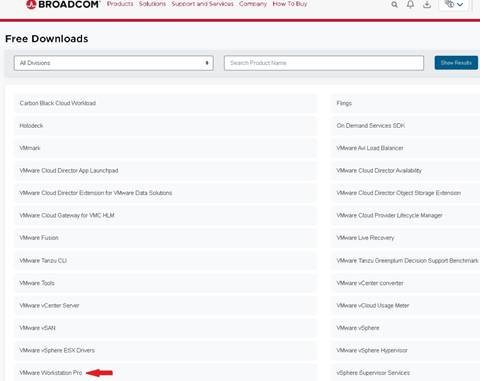
- On the Free Downloads page, scroll to the bottom and click VMware Workstation Pro
Step 8: Select Your Version
You’ll see two version options:
- VMware Workstation Pro 25H2
- VMware Workstation Pro 17.x
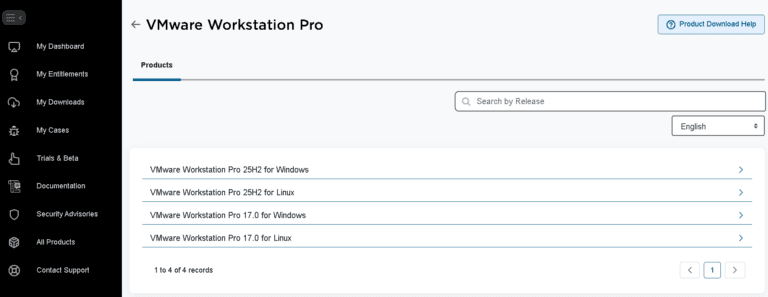
- Click your chosen version number
- You’ll be taken to the product download page for that version
💡 Which version should you pick? Select 25H2 – it’s the current version and the one this series uses throughout. The 17.x option is there for legacy compatibility. Unless you have a specific reason to use an older version, go with 25H2.
Step 9: The Terms and Conditions Dance
Before downloading anything, Broadcom needs you to prove you’ve “read” the terms:
- Click on Terms and Conditions – you have to actually click it because apparently scrolling past isn’t enough
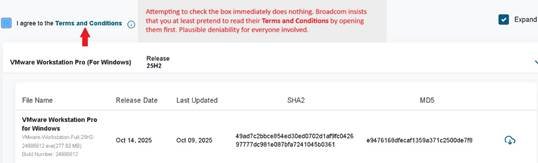
- A new tab will open with the License and Service Terms
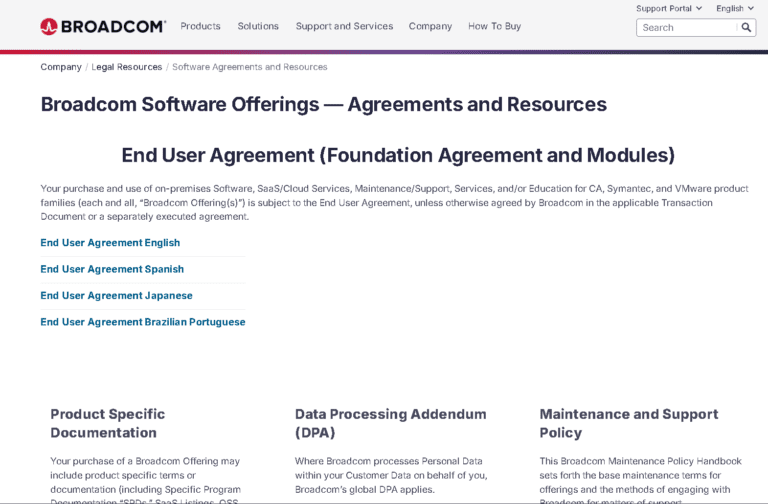
- Scroll to the bottom – we both know you’re not reading it, but scrolling is what activates the checkbox
- Go back to the Product Files – Support Portal, check the box and move on
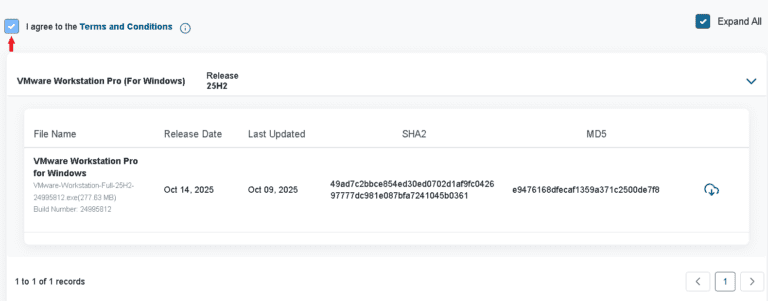
Step 10: Additional Verification (Because Why Not)
You’ve read the terms (allegedly). You checked the box. You click the download button and… what fresh bureaucratic hell is this?
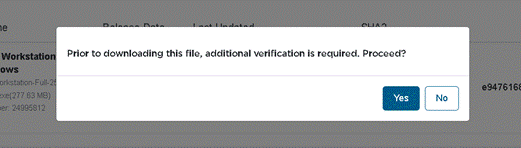
Click Yes.
Broadcom now wants your home address. Why? Nobody knows.
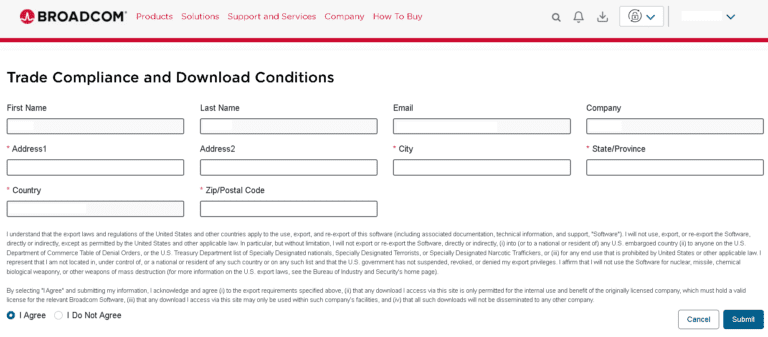
Click Submit and a green confirmation message will appear. That’s Broadcom’s way of saying you’ve proven yourself worthy of a free software download.
Step 11: Download the File
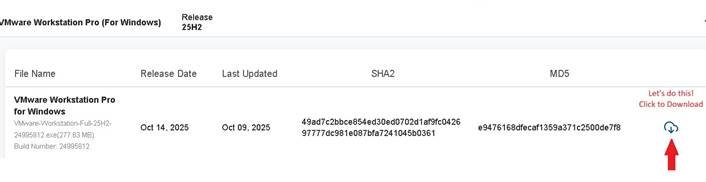
- Click the Download button
- Save the file to wherever you keep installers
- Wait for the download to complete:
- Windows:
VMware-workstation-full-XX.X.X-XXXXXXX.exe(approximately 600-700 MB) - Linux:
VMware-Workstation-Full-XX.X.X-XXXXXXX.x86_64.bundle
- Windows:
Troubleshooting
Can’t find the verification email?
- Check your spam and junk folders
- Search your inbox for selfregistration.no-reply
- Return to the verification form and click Resend the code
Password not working at login?
- Use the Forgot Password flow covered in Step 5. It works, it’s just tedious
- Make sure you’re entering the email address you registered with, not a different one
Terms and Conditions checkbox won’t activate?
- You need to scroll all the way to the bottom of the terms page in the new tab before the checkbox unlocks, just keep scrolling
Download button does nothing after checking the terms box?
- Give a different browser a try – the portal has known quirks with certain versions of Firefox and Chrome
- Clear your browser cache and reload the page
- Make sure you completed the address verification step in Step 10
Tutorial Debrief
📖 Log Entry:
- 🗸 Created a Broadcom support account and verified your email
- 🗸 Navigated the Broadcom portal to the Free Downloads section
- 🗸 Accepted the terms and completed address verification
- 🗸 Downloaded the VMware Workstation Pro installer
⚙️ Skills Stack:
- Broadcom support portal navigation
- Software download and verification workflow
- Enterprise portal account management
Next Objective
The download process for VMware Workstation Pro is objectively ridiculous – but you made it through, and that’s the worst of it. Next up is Lab Series #01: Get VMware Up and Running. The actual installation process is significantly less painful than what you just went through.
Resources
- Broadcom Support Portal: https://support.broadcom.com
- VMware Workstation Pro Documentation: https://docs.vmware.com/en/VMware-Workstation-Pro/
Questions, errors, weird behavior – comment below and we’ll debug it together.